By iTECH2
Protect the camera account first
Use a unique password and turn on two-factor authentication if the camera account offers it. Give each person their own account when possible so you can remove access individually. Review who can view live footage, change settings or export recordings.
Keep the camera, app and router up to date
Turn on automatic updates if available. Check how the manufacturer publishes security updates and how long it supports the model. Secure your router, and consider a separate network for connected devices if your router supports it. Test viewing and alerts after moving cameras to a different network.
Test what happens when your internet goes down
During an agreed test window, check whether the camera still records locally and whether you can retrieve the clip after reconnecting. Internet loss and power loss are separate events. Recording to a local card or recorder still depends on power and the hardware being configured to record.
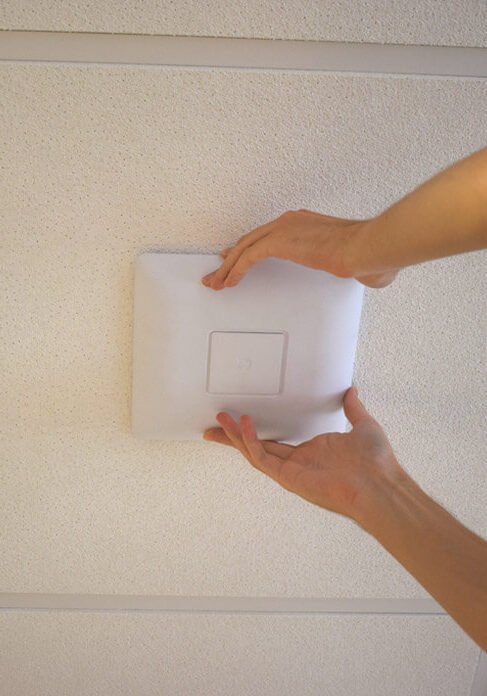
- Secure accounts
- Update devices
- Review sharing
- Test recording
Decide what each camera needs to see
Stand where the camera will be mounted and check where the frame will end. At an entry, a tight view of the approach may be enough. Review whether nearby windows, shared areas or private rooms appear in the picture. If the device supports privacy zones, check the recorded clip as well as the live view to see what the setting covers. Decide separately whether you need audio recording.
Review access after a move or household change
List the people with access to the camera app, the recorder and any connected home app. Remove accounts that are no longer needed and check whether shared links or invitations are still active. If you bought a used device or inherited one with a home, follow the manufacturer’s ownership transfer process before adding it to your account. Test recovery access so a lost phone does not lock out the person who manages the cameras.
Run a short test before counting on the system
Check a live view and playback from home. If you use remote access, repeat from a phone on cellular data. Confirm who gets the test notification and who can export the clip. If you test an internet outage, write down which devices keep recording and which features resume when service returns. Review those results after router changes, subscription changes or camera replacements.
Checklist
- Enable two-factor authentication where available.
- Review who can watch or download recordings.
- Check updates for the camera, router and app.
- Verify that you can retrieve a test clip.
Frequently asked questions
Should I leave remote viewing on?
Keep it enabled if you use it and can protect the account. If you only view cameras at home, check whether the product lets you disable remote access.
Where should I avoid putting indoor cameras?
Avoid private spaces such as bedrooms and bathrooms. Review each camera’s view and audio settings with the people who live in the home.